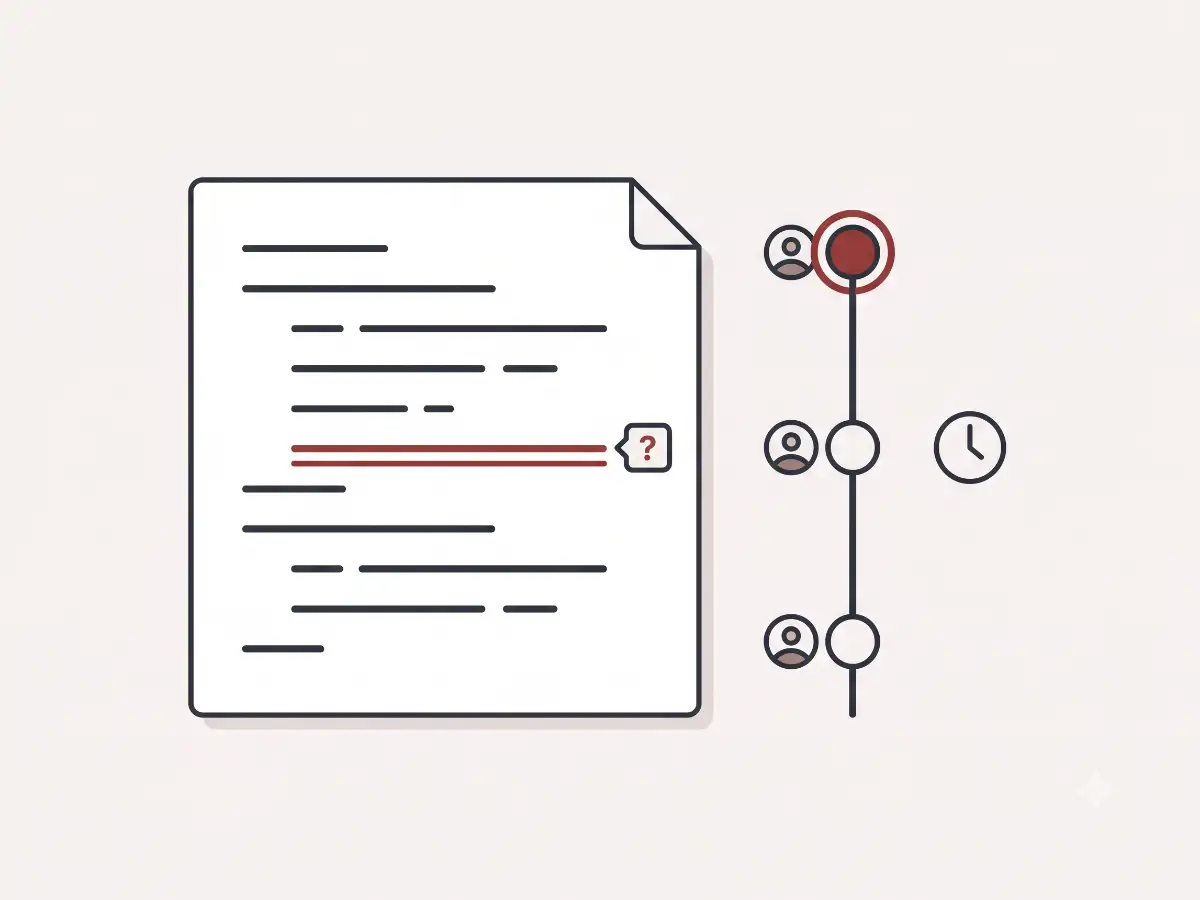
The short version
If you are trying to work out who changed your Shopify theme, here is the honest picture:
- Shopify keeps very limited native history of theme code edits, so the answer may simply not be recoverable for changes that already happened.
- Edits can come from more sources than most owners expect: staff, collaborator accounts, apps writing to theme files, and the theme editor.
- You can reduce the damage today by duplicating the live theme, which gives you a known-good snapshot and a rollback point.
- The durable fix is putting the theme under version control — a system that records every change with who made it and when — and auditing who has access.
None of this requires assigning blame. Stores accumulate editors and integrations over years, and untracked change is the natural result. The goal is to make the next mystery answerable in minutes instead of unanswerable forever.
What the merchant sees
It usually starts small. A section on the homepage looks different than you remember. A button that worked last month now does nothing. A script you have never heard of shows up in a performance report. You ask around, and everyone says the same thing: "not me."
Maybe it was an app update. Maybe a well-meaning teammate adjusted something in the theme editor. Maybe a freelancer from two years ago still has access. Any of those is survivable. What unsettles owners is the meta-problem: the store has no way to answer the question. There is no log to check, no diff to read, no timestamp to compare against the marketing calendar.
That feeling — "our storefront can change and we would not know how" — is worth taking seriously, because the same gap that hides a cosmetic change also hides a broken tracking snippet or a checkout-adjacent bug.
Why Shopify makes this hard
This is not a flaw unique to your store; it is how the platform works.
Theme code is editable by anyone whose account has the right permission, whether that is a staff member or an outside collaborator. Apps can also write to theme files — many integrations add snippets or embed code as part of doing their job, and updates to those apps can change what they wrote.
There are also two separate surfaces where changes happen. The theme editor changes settings and content — sections, blocks, colors, text — while the code editor changes the underlying files. A change made in one is invisible to someone looking at the other, which is how "nobody touched the code" and "the page looks different" can both be true.
And Shopify's native change history is thin. You may see that a theme was recently edited, and online store activity in the admin can show some events, but there is no built-in line-by-line record of what changed in theme code, by whom, across time. The platform assumes you will bring your own change tracking if you need it.
The usual suspects
When I get asked to solve a "who changed this" mystery, the answer is almost always one of a short list.
App installs and updates. Apps write embeds and snippets into themes, and an app update can change that code without any human touching the store. If the change appeared around the time an app was installed or updated, that is the first place to look.
A collaborator account from a past agency or freelancer. Access rarely gets cleaned up when an engagement ends. An old collaborator account with theme permissions is a standing ability to change your storefront — usually dormant, occasionally not, and always unaccountable if nobody remembers it exists.
A staffer in the theme editor. Theme editor changes feel safe because they do not involve code, but they change the storefront just the same. A teammate rearranging sections for a promotion is one of the most common sources of "who moved this."
A "temporary" campaign edit that stuck. A banner, a countdown, a promo script added for one weekend — and then the weekend ends and nobody removes it. Six months later it reads as a mystery.
An app uninstall that left code behind. Uninstalling an app removes the app, not necessarily what it wrote into the theme. Leftover snippets surface later as unexplained scripts and odd behavior — I cover that pattern in detail in the app-still-loading guide.
What Shopify gives you natively
Shopify's built-in tools are worth knowing, as long as you are honest about their limits.
You can duplicate a theme at any time, which creates a full snapshot. A dated duplicate — "Live theme backup 2026-07-19" — is a real rollback point and costs nothing. The limit: it only protects you from changes made after the duplicate, and it tells you nothing about what changed, only that something did.
You can also keep an older copy of the theme in your theme library and republish it, which is a crude but effective rollback. The limit: publishing an old copy rolls back everything, including changes you wanted to keep, and any content edits made since.
Finally, the admin's recent activity views can show some events — theme publishes, app installs — where available. The limit: coverage is partial, retention is short, and code-level detail is absent. Native tools give you snapshots and hints, not history.
The durable fix: your theme in version control
Version control — git is the standard tool — is how software teams have solved exactly this problem for decades, and Shopify themes are ordinary code files that fit it perfectly.
In plain English, putting your theme under version control gives a store owner three things:
- A signed log of every change. Each change is recorded with who made it, when, and a short description. "Who changed this" becomes a lookup, not an interrogation.
- Line-by-line visibility. You can see exactly which lines of which files changed between any two points in time — not "the product template was edited," but precisely what was added and removed.
- Instant rollback. Any previous state of the theme can be restored, and you can roll back one specific change without losing everything after it.
Shopify supports this workflow directly through its GitHub integration, which keeps a theme in the store synced with a repository — so even changes made through the Shopify admin get captured in the log. That is the supported path, and it means version control is not a developers-only luxury bolted onto the platform; it is a first-class way to run a theme.
Every client theme I manage lives in version control, and the change log has settled more than one "who changed this" mystery in about thirty seconds.
Access hygiene
Tracking answers "what changed." Access hygiene shrinks the pool of things that can change without you knowing.
Today, look at two lists in your Shopify admin: staff accounts and collaborator accounts. For each one, ask whether that person or company still works with the store and still needs theme access. Remove what no longer needs to exist. This takes fifteen minutes and is the highest-leverage security and sanity step available to most stores.
Going forward, give future agencies and freelancers collaborator access — which you can scope and revoke — rather than sharing a staff login. Shared logins make every change anonymous by design and outlive the working relationship silently.
To be clear, finding six forgotten accounts does not mean anyone did anything wrong. Access sprawl is normal entropy: engagements end, people move on, and nobody's job is to close the door behind them. Making it someone's job — quarterly, on the calendar — is the fix.
The safe-change workflow, briefly
Untracked changes hurt twice as much when they land directly on the live theme. The working rule for any deliberate change:
Never edit the live theme directly.
Duplicate it and make the change on the copy.
Test the copy, then publish — keeping the old theme as rollback.
I go through the full version of this — including what carries over and what does not — in the theme update guide.
What store owners can do today
1. Duplicate the live theme
Free insurance, two clicks. Name it with today's date. From this moment on, you have a known-good snapshot to compare against and roll back to.
2. List your collaborators and staff
Write down every account with access to the store and what each is for. Anything you cannot explain is a candidate for removal — or at least a question worth asking.
3. Screenshot your key pages
Homepage, a top product page, the cart, any high-traffic landing pages — desktop and mobile. Future "did this change?" conversations go much faster when there is a reference to compare against instead of memory.
When to look closer, and how the Detox Scan helps
Untracked edits leave symptoms on the public storefront: leftover snippets from departed apps, duplicate scripts doing the same job twice, code that nobody on the current team remembers adding.
Shopify Detox Scan reads those symptoms from outside the admin — what scripts actually load, which app embeds are present, where duplication and leftovers show up. If your store has years of unaccounted-for editing history, an external scan is a practical way to see what all those untracked changes added up to, before deciding what to clean and what to keep.
What you can check yourself vs. when to get help
You can duplicate the live theme, audit staff and collaborator accounts, check recent app installs and updates against when the change appeared, and keep dated screenshots of key pages.
It is worth having someone look closer when the mystery involves code: identifying what a leftover snippet does, untangling which of several similar scripts is live, or setting up the GitHub-synced version control workflow so the theme's history starts being recorded properly.
A well-run theme should make "who changed this" a boring question — thirty seconds in a change log, not a week of asking around.
Wondering what years of untracked edits added up to?
A Shopify Detox Scan maps what is actually loading on your storefront — leftover snippets, duplicate scripts, and code nobody remembers adding — so you can decide what to clean up first.
Start with Shopify Detox Scan