The short version
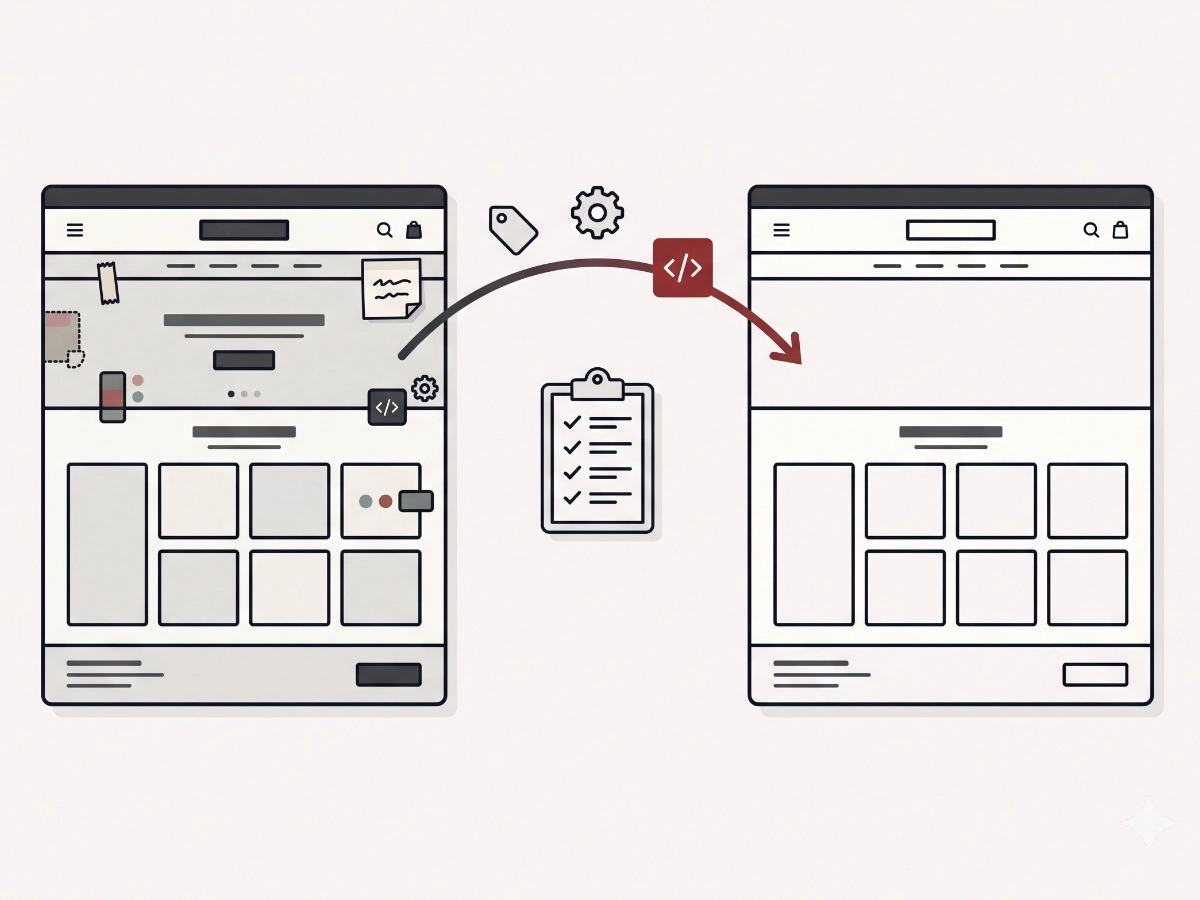
Updating a customized Shopify theme is rarely a one-click patch. The practical version is:
- A theme update usually means getting a fresh copy of the theme, not patching the current live copy in place.
- Theme settings and JSON template content may transfer through supported paths, but code edits do not carry over automatically.
- Custom sections, snippets, app code, tracking snippets, cart logic, and CSS changes can be lost unless they are re-applied deliberately.
- The safe workflow is inventory, duplicate, rebuild, test, publish, and keep the old theme as rollback.
- Sometimes the right answer is not to update yet.
That last point matters. The goal is not constant motion. The goal is knowing what you have, what the newer theme would actually give you, and what it would cost to carry the right customizations forward.
Why theme updates aren't really updates
For many Shopify merchants, the word update sounds like a small patch: click a button, keep the current site, and receive the newest fixes. A customized Shopify theme often works differently.
The theme store can give you a fresh copy of the theme. Some settings and JSON template content may transfer through Shopify's supported update paths, depending on the theme and how it was customized. But code-level customizations live in the old copy unless someone moves them.
That includes edited sections, custom snippets, pasted app integrations, tracking code, cart drawer changes, subscription widget adjustments, and CSS or JavaScript added directly to theme files. If those changes are what make your storefront work, a fresh theme copy will not magically know about them.
This is why merchants feel nervous. They are not being dramatic. They have learned, correctly, that the live theme contains business logic nobody wants to lose.
The theme editor can make this feel more confusing because some content does carry over cleanly. A merchant may see familiar settings, pages, and sections in the new copy and assume the update is mostly done. The missing pieces are usually the custom code paths that only show themselves during real shopping behavior: variant changes, quick-add, cart drawer updates, subscription frequency changes, market-specific messages, and tracking events.
Why customized stores rarely update, and when that's fine
Many established Shopify stores sit on an older customized theme for years. Sometimes that is neglect. Often it is risk management.
If the store is stable, the theme does what the brand needs, checkout entry works, app integrations behave, and the team is not missing a specific feature, staying put can be legitimate. Shopify is hosted. An older theme is not automatically a security emergency in the way an abandoned self-hosted plugin might be.
There are still costs. Older themes can miss newer Online Store 2.0 capabilities, app vendors may assume more modern theme patterns, and every year of undocumented customization can make a future update or rebuild more expensive. The risk compounds quietly.
But the answer is not "always update." The answer is "know why you are not updating." A deliberate pause is different from fear-driven avoidance.
A good reason to pause sounds specific: "The new version does not add anything we need this quarter, our subscription and cart flows are stable, and we have a rollback copy plus an inventory started." A weak reason sounds vague: "We are afraid to touch it because nobody knows what is in there." The storefront may stay on the same version in both cases, but the second one is a maintenance debt problem waiting for pressure.
When updating, rebuilding, or leaving it alone is worth it
I think about the decision in three buckets.
Update when the vendor shipped features you genuinely need and your customizations can be carried forward cleanly.
Rebuild when the old customizations have drifted so far that the update is really a migration anyway.
Leave it alone when the store is stable and the newer version does not solve a meaningful business or maintenance problem.
Updating is worth considering when the theme vendor added features your team would actually use, when app vendors are struggling with old theme patterns, when performance or accessibility improvements are meaningful, or when the current theme blocks merchandising work.
Rebuilding may be more honest when years of code edits have turned the theme into a private fork. I wrote about that kind of active-template audit in the specialty beverage field note. In those cases, pretending the work is a simple update can hide the real scope.
Leaving it alone is reasonable when the update offers no clear benefit and the current theme is behaving. The useful work then is documentation: make a customization inventory so the future decision is easier.
I also look at timing. If a major sale, product launch, or subscription migration is two weeks away, a theme update may be the wrong project even when the update itself is valuable. The safer sequence may be to document the current theme now, get through the revenue moment, and schedule the update or rebuild when the team can test calmly.
What breaks in practice
The scary part of theme updates is not usually the homepage headline. It is the quiet behavior underneath.
A product page can look mostly right and still lose a subscription option, sticky add-to-cart behavior, delivery messaging, gift logic, bundle handling, analytics event, or template assignment.
That does not mean the new theme is bad. It means the old theme had work inside it. The update has to decide which parts of that work still deserve to exist.
Tracking deserves special attention because it can fail quietly. A new theme may remove an old hardcoded snippet, which sounds good until that snippet was the only place a business-critical event fired. The reverse can happen too: a new app embed is turned on while an old theme snippet is carried over, creating duplicate events. Theme updates and analytics cleanup often need to be looked at together.
Step zero: the customization inventory
Before any update, make an inventory. This is useful even if you decide not to update.
List custom sections and snippets. List app integrations that live in theme code instead of app embeds. List tracking snippets and tag managers. List custom CSS and JavaScript. List product, collection, page, cart, and blog templates. List template assignments that matter. List metafields or metaobjects used by the theme.
The inventory is the map of what nobody documented. It also helps separate customizations that are still valuable from old hacks that should not survive the move.
For each item, add a simple status: keep, replace, retire, or investigate. "Keep" means the behavior still matters and should be rebuilt or moved. "Replace" means the new theme or an app embed can handle it better. "Retire" means it no longer serves the business. "Investigate" means nobody is sure yet, which is honest and better than guessing.
The safe update workflow
A safe update keeps the live theme untouched until the replacement is proven.
Keep the live theme untouched and duplicate it as a fallback.
Install the new theme version as an unpublished theme.
Transfer settings and content through supported paths where available.
Re-apply customizations deliberately, deciding what deserves to survive.
Test PDPs, cart, checkout entry, subscriptions, tracking, search, and key templates.
Publish in a quiet window and keep the old theme ready for rollback.
The testing step should include desktop and mobile. It should include the main product form, sticky add-to-cart if present, cart drawer, full cart page, discount behavior, subscription products, forms, analytics, and any high-revenue templates.
Do not publish because the homepage looks right. Publish because the buying paths, tracking, and content templates have been checked.
I like a short launch checklist with named owners. One person checks merchandising and content. One checks cart and checkout entry. One checks subscriptions or app-specific behavior. One checks analytics and pixels. Smaller stores may have one person doing all of it, but the categories should still be explicit so nothing important is skipped because the visual review felt finished.
What store owners can do first
You can make the future update safer without touching the live storefront today.
1. Duplicate the live theme
This is free insurance. It gives you a current rollback point and a place to inspect customizations without poking the live copy.
2. Start the inventory
Write down the obvious custom work: special product sections, cart behavior, subscription logic, scripts, app integrations, landing pages, and templates your team relies on.
3. Read the theme vendor's changelog
Do not update because a version number exists. Check what changed. If the newer version solves a problem you actually have, the conversation becomes more concrete.
4. Separate must-keep from maybe-retire
Some old customizations still make money. Some only exist because nobody removed them. The update is a chance to choose, not just carry everything forward blindly.
5. Save examples of important behavior
Record short notes or screenshots of the current product page, cart drawer, subscription selector, promotional messaging, and any custom landing pages. Those references make it easier to test the unpublished theme without relying on memory.
When to look closer, and how the Detox Scan helps
It is worth looking closer when the theme has years of edits, several app migrations, fragile cart behavior, subscription customizations, tracking history, or unclear template assignments.
Shopify Detox Scan maps what is actually loading and customized on the public storefront from outside the admin. It can surface app scripts, tracking clutter, cart-flow clues, template signals, performance issues, and visible areas where the theme is doing more than the theme editor suggests.
That outside view is useful before anyone gets theme access because it helps frame the decision: update, rebuild, or leave it alone for now.
What you can check yourself vs. when to get help
You can duplicate the live theme, read the changelog, list known customizations, and identify the buying paths that would need testing before publication.
It is worth having someone look closer when important behavior lives in code instead of theme settings: cart drawers, subscriptions, tracking, bundles, app integrations, custom templates, or metafield-driven sections. Those are the places a fresh theme copy is most likely to forget.
A careful update should feel boring at publish time. The decisions happened earlier, the customizations were accounted for, and the old live theme is still available if rollback is needed.
Theme updates should be deliberate.
If you are not sure whether to update, rebuild, or leave a customized Shopify theme alone, start with a Shopify Detox Scan and get a practical map of what the storefront is carrying.
Start with Shopify Detox Scan