The short version
Uninstalling a Shopify app usually revokes the app's access to the store. It does not always remove code the app, a theme, or a developer added to the storefront.
That leftover code may continue to:
- Request scripts from the old app's CDN.
- Look for containers that no longer exist.
- Leave empty blocks or branded divs in the theme.
- Add page weight even though the app is not being used.
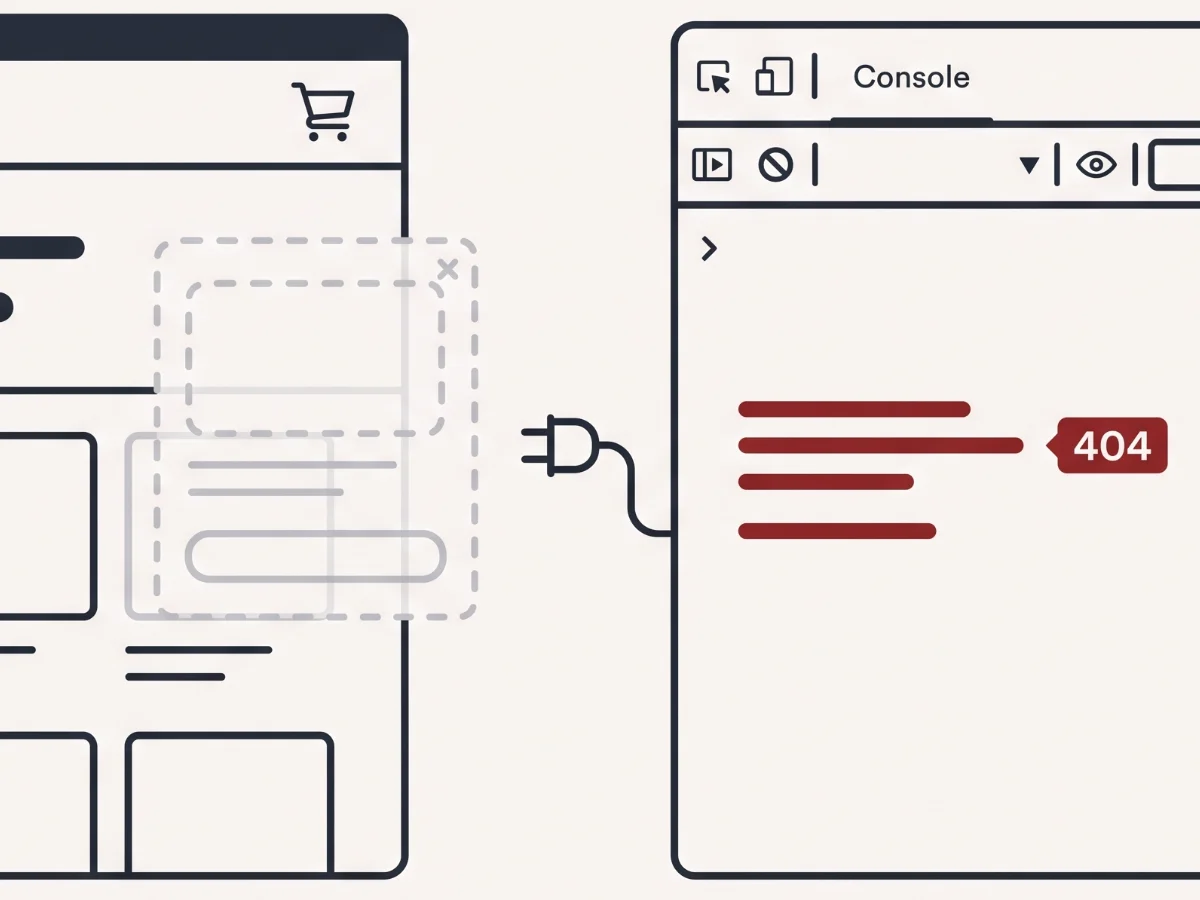
- Create browser console errors that hide more important issues.
- Conflict with the new app that replaced it.
The safest path is to identify the leftover code, confirm it is not still serving a purpose, remove it from a duplicate theme, and test the storefront before publishing.
That sequence matters because old app code can sit in the same places that affect buying behavior: product forms, cart drawers, quick-add buttons, subscription widgets, and analytics events. The app may be gone from the admin, but the storefront can still be carrying pieces of the implementation.
Why this happens
Apps touch Shopify storefronts in a few different ways, and not all of them clean up the same way.
App embeds
App embeds are controlled in the theme editor. These are usually the cleanest to turn off or remove because Shopify knows they belong to the app.
When an app uses an embed correctly, uninstalling the app or disabling the embed usually removes the visible storefront behavior. That is the direction Shopify has pushed the ecosystem, and it is one reason newer app installs are often easier to reason about.
Theme-injected snippets and Liquid includes
Older apps, custom setups, and some implementation work add snippets or Liquid includes directly into the theme. Liquid is Shopify's theme language. If the code was written into a theme file, uninstalling the app may not remove it.
This is where many store owners get surprised. The app can no longer access the store, but the theme file still has a line that says to render an old snippet, output an empty container, or load a script from a saved URL. Shopify will keep rendering that theme code until someone changes the theme.
Old ScriptTag-era scripts and hardcoded scripts
Some apps used Shopify ScriptTags, and some developers added hardcoded <script> tags to the theme. Those scripts can keep requesting files from a dead app domain or CDN after the app is gone.
Hardcoded scripts can also be added for perfectly reasonable reasons: a launch deadline, a temporary promotion, a vendor setup call, or a migration that needed a bridge. The problem is not that the code ever existed. The problem is that temporary storefront code often becomes permanent unless someone comes back and checks it.
None of this automatically means someone did bad work. It often means the store changed over time, and the cleanup step never happened.
What leftover app code looks like from the outside
You can often see clues without entering the Shopify admin.
/apps/... paths
Failed CDN requests from the old app's domain
Console errors from scripts looking for missing containers
Empty divs with app-branded class names
JavaScript files that load but do not appear to do anything
Popups or widgets that flash briefly and disappear
Cart drawer or PDP code referencing an app that is gone
Duplicate scripts from old and new apps
One failed request is not always urgent. The pattern matters. If the same dead app appears across product pages, cart, and checkout-adjacent flows, it is worth tracing.
It is also worth checking whether the old code appears only after an interaction. Some leftovers do not load on the first page view. They show up after a variant changes, the cart drawer opens, a quick-add button runs, or a popup waits a few seconds before trying to initialize.
If an old app was connected to cart behavior, the signal can overlap with broader Add to Cart issues. The same public-storefront checks I describe in the Add to Cart spinner guide can help separate a button problem from an app script problem.
Why it matters, calmly
Leftover app code is usually not an emergency by itself. The store may keep selling. Shoppers may not notice anything obvious.
But leftovers can compound over time.
They add page weight, create console noise, hide real errors, and make future work harder because nobody knows which code is safe to delete. They can also conflict with replacement apps when both old and new scripts target the same product form, cart drawer, review container, popup area, or tracking event.
This is one reason theme cleanup can produce real performance and maintainability gains. In the JS payload cleanup field note, removing unused and duplicate storefront scripts was part of cutting product-page JavaScript roughly in half.
The maintainability part is just as important as the speed part. When every old install leaves a small piece behind, the theme becomes harder to change safely. A simple request, like replacing a loyalty widget or adjusting a cart drawer, turns into detective work because nobody knows which selectors, snippets, or event listeners still matter.
That uncertainty slows teams down. Agencies hesitate to remove code they did not write. Internal ecommerce managers hesitate to approve cleanup because the risk is hard to explain. Developers spend time defending against unknown scripts instead of improving the shopper flow.
What store owners can check first
You can gather useful evidence before changing anything.
1. Search the Network tab
Open the storefront, then use the browser DevTools Network tab and filter by the old app's name, domain, or CDN. Refresh a product page and the cart. Look for files that still load or fail.
If the app name is generic, search by the vendor domain, an old snippet name, or a phrase from the widget the app used to show. You are not trying to diagnose every request in the browser. You are looking for repeatable clues tied to the app you thought was removed.
2. Search the theme code editor carefully
Search for the old app name, domain, snippet name, or branded class names. Look first. Do not delete yet. A snippet can be referenced by multiple templates, and a broken removal can affect live pages.
If you find a match, note the file name and the page where you saw the outside signal. A reference in a product section means something different from a reference in a layout file that loads on every page.
3. Check app embeds in the theme editor
In the Shopify theme editor, review app embeds and app blocks. Some leftover display settings may still be present even after a workflow changed.
4. Compare pages
Check whether the old app loads on every page, only product pages, only cart, or only one template. That pattern helps identify where the code was added.
Also compare desktop and mobile. Some apps attach only to mobile drawers, sticky bars, or slide-out menus. A desktop-only check can miss the exact path most shoppers use.
Why just delete it goes wrong
It is tempting to search the theme for the old app name and remove every match. Sometimes that is fine. Often it is not careful enough.
A snippet may be referenced by a product template, cart drawer, collection quick-add, custom landing page, or another app. A script may look unused until a certain product type or mobile drawer path needs it. A container may be empty now but still used by a replacement script.
There is also a rollback problem. If code is deleted directly from the live theme and the cart starts behaving differently, the team has to rebuild context under pressure. A duplicate theme gives you a calmer place to test, compare, and back out if a removal changes something unexpected.
The safer approach is deliberate:
Duplicate the theme before touching live code.
Locate every reference to the old app name, script, snippet, and container.
Remove only the references confirmed to be orphaned.
Test PDP, cart drawer, cart page, quick-add, and mobile flows.
Publish only after the duplicate theme behaves cleanly.
Monitor the browser console and key customer flows after launch.
This is slower than deleting blindly, but it is less likely to create a new storefront problem. It also gives the next person a clearer trail: what was removed, why it was considered orphaned, and which storefront paths were tested after the change.
When to look closer, and how the Detox Scan helps
It is worth looking closer when the old app still appears in network requests, when console errors mention missing app containers, when a replacement app behaves inconsistently, or when nobody on the team knows which app code is still active.
Shopify Detox Scan can fingerprint visible app scripts without admin access. It can flag live and dead app references, console errors, app/script complexity, cart drawer clues, and storefront areas where old code appears orphaned.
The scan will not delete anything from your store. It gives you a clearer map of what appears to be loading and where a careful cleanup should start.
That external view is useful before giving anyone theme access. It can show whether the issue looks isolated to one app, tangled with cart behavior, or part of a broader pattern of old scripts loading across the storefront.
What you can check yourself vs. when to get help
You can check the storefront network requests, search theme code for the old app name, review app embeds, and collect examples of pages where the old app still appears.
It is worth having someone look closer when the old code touches product forms, cart drawers, subscription widgets, checkout-adjacent flows, analytics, or replacement apps. Those areas affect buying behavior, so the cleanup should be tested before it reaches the live theme.
A good cleanup separates harmless leftovers from risky ones, removes only what is actually orphaned, and leaves the next developer with a clearer storefront.
Old app code should not keep affecting new storefront work.
If an uninstalled Shopify app is still loading, start with a Shopify Detox Scan and get a practical read on what appears live, dead, duplicated, or risky.
Start with Shopify Detox Scan