The short version
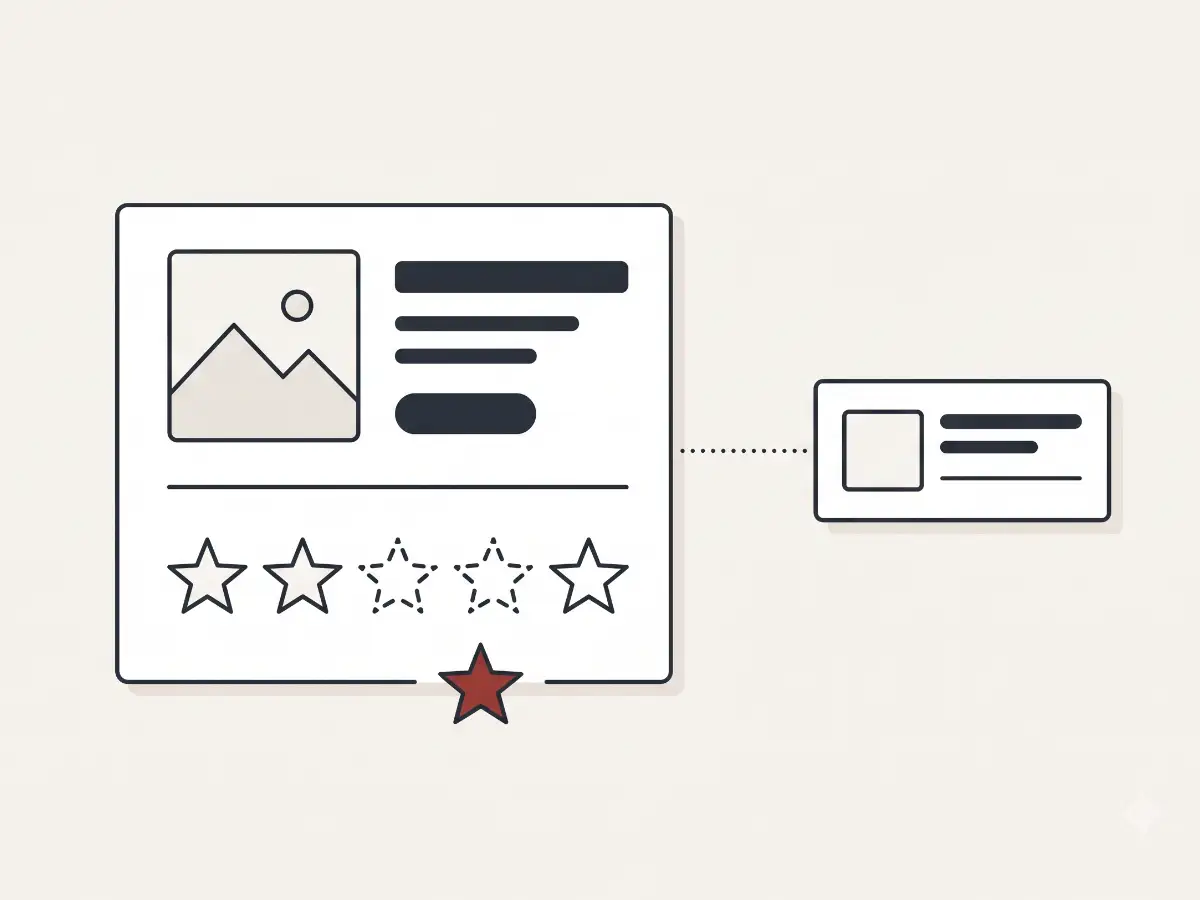
"Review stars not showing" gets used to describe three genuinely different problems:
Stars are missing from the product page entirely — usually a widget placement or app embed problem.
Stars appear late and shift the layout as they load — a script loading and performance problem.
Stars are missing from Google search results — a structured data problem, with an asterisk.
The causes barely overlap, and so a fix aimed at the wrong problem does nothing. A store can have perfect structured data and still show no stars on the page, or a beautiful on-page widget and nothing in Google. Identify which one you have first; everything below is organized around that.
Problem one: stars missing on the product page
When stars vanish from the storefront itself, the cause is almost always in how the review app connects to the theme — and the connection comes in two flavors worth telling apart.
An app block is the modern way: the review app provides a block you place visually in the theme editor, and the theme knows about it as a first-class citizen. A pasted snippet is the older way: a line of code someone added to the product template by hand. The difference matters because they break differently.
The common causes:
- The snippet or block lost its place after a theme change. If the stars came from a pasted snippet, a theme update or template rework can simply not include it — the new template never got the line of code the old one had. App blocks survive better, but a rebuilt product section can still drop them.
- The app embed is toggled off. Many review apps also rely on an app embed — a theme-wide switch in the theme editor under "App embeds." Switching or updating themes very commonly resets these to off, and the widget silently stops rendering. This is the single most frequent cause I see.
- The widget is targeting a selector that no longer exists. Some widgets inject themselves into a specific element in the page — a div with a particular class or ID. If a theme change renamed or removed that element, the widget loads, finds nothing to attach to, and renders nowhere.
The diagnostic question for all three: did the stars disappear around the time the theme was updated, switched, or customized? If yes, the theme–app connection is where to look.
Problem two: stars load late or shift the layout
Sometimes the stars are technically present but arrive badly. The page renders, the shopper starts reading, and then the stars pop in — pushing the price and buttons down as they do. On a slow connection, they may arrive so late they look missing.
This happens because review widgets inject their content with JavaScript after the page loads. The usual contributors:
- Script loading order. The widget script loads late in the queue, behind analytics, pixels, and other apps, so its content arrives last.
- Heavy widget bundles. Some review widgets ship a lot of JavaScript for what amounts to five stars and a count. On mobile connections, that weight translates directly into delay.
- No placeholder space in the theme. If the theme reserves no room where the stars will appear, their arrival physically shifts everything below them — the layout jump shoppers feel when a button moves as they tap it.
The tell for this problem is that the stars are fine on your office wifi and "missing" in complaints from real shoppers. Nobody is imagining things — you are simply testing on a faster connection than your customers shop on, and the widget's delay never gets long enough for you to notice it.
It is worth saying calmly: this is a real user-experience problem, not just a cosmetic one. Layout shift is one of the things Google measures in Core Web Vitals, and a button that moves mid-tap costs real add-to-carts. "The stars show up eventually" is not the same as "the stars are fine."
Problem three: stars missing from Google results
Stars in search results come from a different layer entirely: structured data, machine-readable product and review information embedded in the page's code. Your review app typically injects this markup, and Google reads it when deciding whether to decorate your listing with stars.
Two failure patterns dominate:
- Duplicated or conflicting structured data. If two sources emit review markup — an old review app and a new one, or the theme itself plus an app — Google sees conflicting claims about the same product and often responds by showing nothing. This is extremely common on stores that have switched review apps.
- Missing structured data. The current app's markup was never enabled, or a theme change removed the connection that let it render.
And one honest caveat that saves a lot of frustration: rich-result stars are never guaranteed. Google treats correct markup as making stars possible, not promised, and it decides page by page and query by query. If your markup validates cleanly and stars still do not appear, that can simply be Google's call. Anyone promising to force stars into search results is overpromising.
The multiple-review-apps history problem
Many established stores have been through two or three review platforms — a Yotpo era, an Okendo era, a Judge.me era, in some order. Those are just category examples; every one of these platforms works well when it is the only one present. The trouble is what each era leaves behind.
These leftovers produce exactly the symptoms above: the current widget fighting an old container for the same spot, duplicate schema confusing Google, and phantom elements that break spacing. If your store has review-app history, cleanup of the previous app is part of fixing the current one — the same leftover-code pattern I cover in the app-still-loading guide.
Odd cases worth knowing about
Two less common patterns show up often enough to mention.
Hardcoded stars pointing at old products. Collection pages and homepages sometimes carry star snippets that were hardcoded to specific product handles — the store's bestsellers at the time. When those products are renamed, merged, or retired, the snippets quietly render nothing. The product pages are fine; the homepage stars are the ghosts.
Stars on desktop but not mobile. Some themes use different sections or templates for mobile layouts, and the review widget was only ever wired into one of them. If your stars exist on desktop and vanish on a phone, compare the two templates before blaming the app.
Neither of these shows up in a review app's own diagnostics, because from the app's point of view everything is working. They are theme-side artifacts, which is why they tend to survive support tickets unresolved.
What store owners can check first
1. Check the app embeds toggle
In the theme editor, open the app embeds panel and confirm your review app's embed is switched on. If you changed or updated your theme recently, this is the most likely culprit and takes thirty seconds to check.
2. View a product page in a private window on a throttled connection
A private window shows you what new visitors see, and your browser's developer tools can simulate a slow connection. Watch when the stars arrive and whether the page jumps when they do.
3. Run one product URL through Google's Rich Results Test
It is free and tells you whether Google can read review markup on the page — and whether it sees more than one set of it.
4. Confirm the review app is installed on the current theme
Most review apps' dashboards show which theme they are connected to. After a theme switch, the app may still be pointed at the old one.
5. Check whether stars are missing everywhere or just somewhere
All products, or just some? All templates, or just mobile? Products with reviews, or only products without them? (Many widgets hide stars at zero reviews by design.) The pattern of where stars are missing usually identifies the cause.
When to look closer, and how the Detox Scan helps
If the quick checks do not resolve it — or resolve one symptom while another persists — the cause usually lives in the interaction between the current widget, the theme, and whatever previous review apps left behind. That interaction is hard to see from inside the admin.
Shopify Detox Scan looks at the storefront from outside: which widget scripts load and when, evidence of more than one review platform on the page, duplicate structured data, and layout-shift behavior as the page renders. That view can tell "the widget is broken" apart from "the widget is fighting a leftover" — which is exactly the distinction that decides what the fix is.
What you can check yourself vs. when to get help
You can check the app embeds toggle, test a product page in a private window, run the Rich Results Test, confirm the app is connected to the current theme, and map where the stars are missing.
It is worth having someone look closer when the fix means editing theme code: removing a previous review app's snippets and schema, re-placing a widget in a rebuilt template, reserving placeholder space so the stars stop shifting the layout, or untangling which of two markup sources should survive.
Fixed properly, review stars should be boring: present on every product that has reviews, in place before the shopper scrolls, and described to Google by exactly one source.
Not sure which star problem you have?
A Shopify Detox Scan reads your widget scripts, structured data, and layout behavior from the outside — and tells a broken widget apart from a widget fighting a leftover.
Start with Shopify Detox Scan